
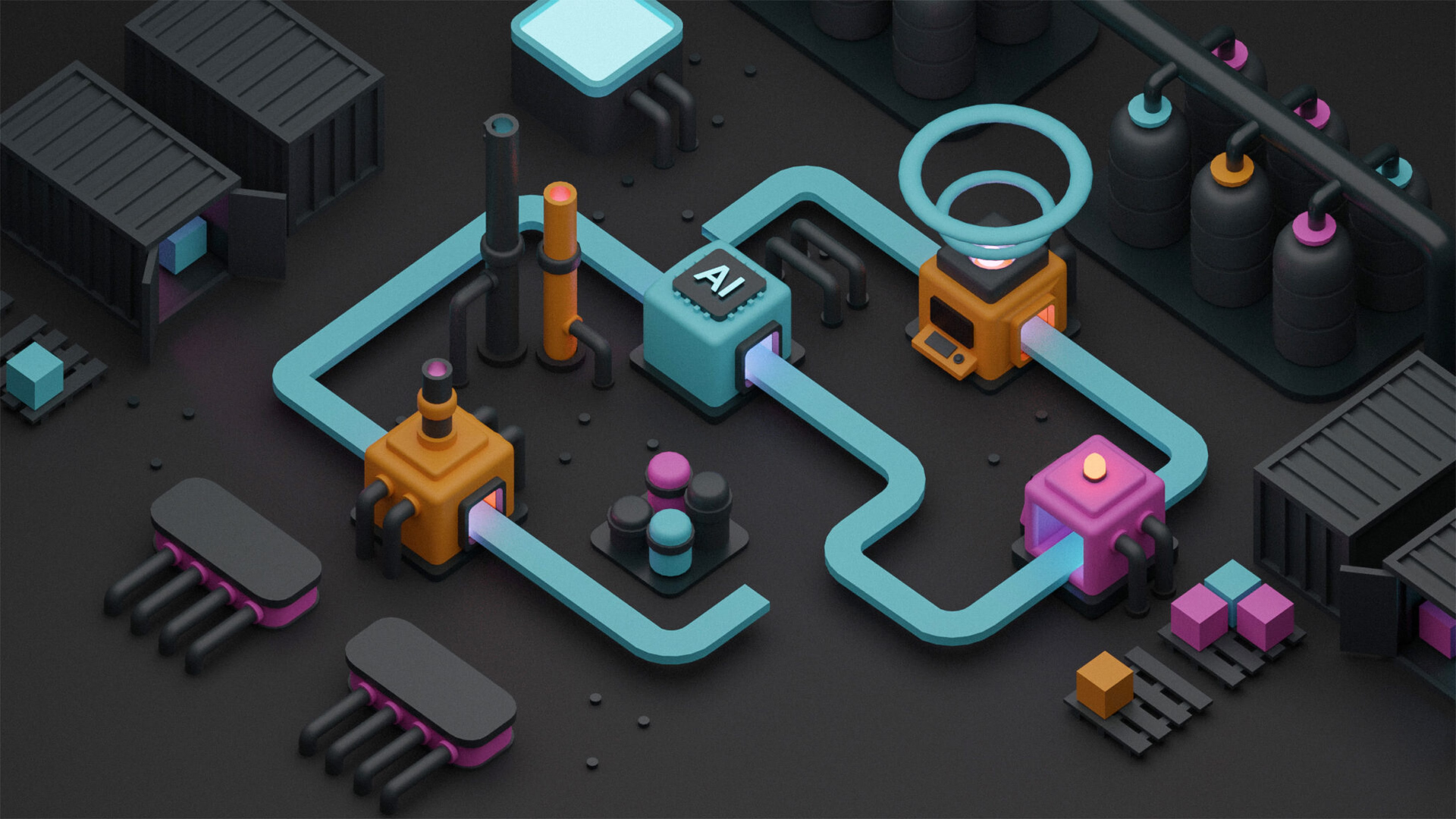
In this era of powerful AI image generation and freely available icon libraries, the question quickly arises: “Why bother designing icons ‘by hand’ at all?” For many, resorting to existing solutions may seem like the easiest and fastest way. But in reality, it has been proven time and again that “out-of-the-box” solutions are not enough—especially when requirements become more complex and individualized. This was exactly the case for us when we wanted to translate our Centigrade service icons into automatically generatable 3D visuals. It was a project that simply could not be solved with off-the-shelf solutions.
In this blog post, you can find out how I approached this design process, why we deliberately set creative limits, and what a Python script has to do with it all.
Initial problem
Centigrade offers a wide range of services—and our website already features corresponding icons that visually illustrate each of our services, from user research and UX & UI design to AI automation. In the future, there will be separate landing pages for each service, which will allow users to interactively experience these diverse services. These pages will not only provide information, but also offer playful experiences in a 3D world. So you can look forward to it! My part in this is to design the existing service icons in such a way that they can be modeled into interactive 3D visuals – as animated conveyor belts and production stations that transform customer inquiries into digital experiences.
The respective 3D visuals should not be redesigned each time, but rather generated automatically from predefined segments and stations.
That was precisely the initial question in my design process: “How should icons be structured so that they contain enough detail to be recognizable and distinguishable, but are also simple enough to serve as a blueprint for the 3D visuals?” The icons had to follow a logic of reusable segments and also comply with formal design rules. As is so often the case, the motto was: “Form follows function.”
Since each of our service icons consists of a single line, and this line will later become a conveyor belt, we had to take the space for the stations into account in the design. To make this work, we had to limit the number of angles and create enough space along the lines to be able to place the stations neatly.
Test setup
What i knew:
The icons should consist of a single, open line as described – with a clearly recognizable start and end point.
In order to use the icons later as a basis for the 3D visuals, I had to export a continuous vector path as SVG. I was able to work with strokes in Figma.
Icons that were too complex had to be significantly reduced and abstracted to make room for the respective stations within the icon.
90° angles work well – horizontal and vertical lines allow enough space for the stations.
At the same time, visual curve transitions ensure that the later animated virtual conveyor belt maintains a consistent width.
What I needed to find out:
Which angles other than 90° can be used effectively—e.g., 30°, 45°, 60°?
What is the best way to simulate the curve segments technically in order to achieve a harmonious connection between the 2D icons and the 3D visualization? Are the stroke settings in Figma sufficient for this, or are manual adjustments necessary?
My approach
To find out which angles work best, I created different variants in Figma. First, I deactivated the curve and radius settings in order to work with clear edges. This showed that, in addition to the classic 90° angles, 135° angles are also a good compromise: on the one hand, they create sufficient freedom in the design and, at the same time, allow as much space as possible to be used within the icons thanks to the open angle.
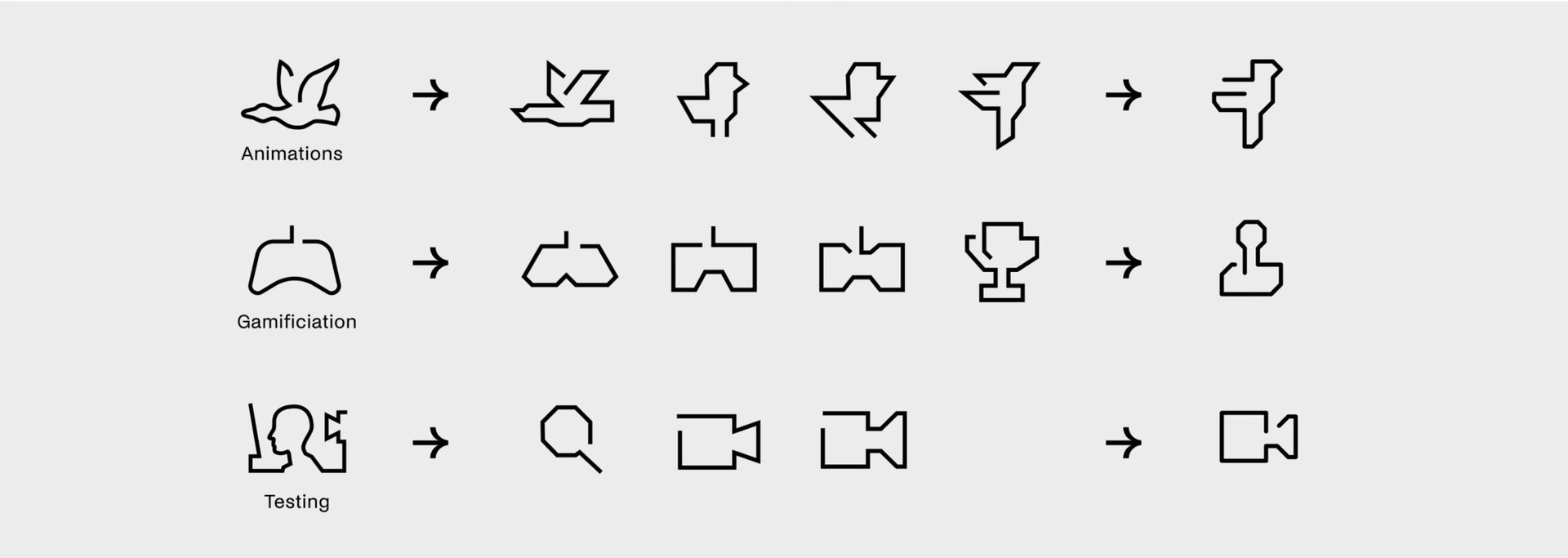
I deliberately limited myself to only two angles in the line design – 90° and 135°. This design limitation creates clear parameters and ensures an open, recognizable design language. However, I had to rethink some existing symbols because they no longer functioned as usual in this reduced language. A good example is the icon for “usability testing”: our classic magnifying glass looked more like a stop sign due to the flat angles. So I extracted the original core element – the video camera for recording usability tests – and reinterpreted it as an overarching symbol. I applied the same principle to the game controller (for the “Gamification” service): the formal restrictions made it much less recognizable, which is why I initially opted for the ‘trophy’ as a motif, but ultimately chose the “joystick” to convey the message behind the icon more clearly.
Automatically generate radiuses
Figma is well suited for designing icons because it is vector-based, allows for easy scaling, and facilitates SVG export. Practical functions such as snap-to-pixel and grid help you work with pixel precision. When working with contours, you can specify whether corners and line ends are displayed sharply or rounded. I took a closer look at these settings because in 3D visualization, all corner points are replaced by curves, which results in softer curves.
My conclusion: The radius settings in Figma are limited—especially when working with pixel precision. Although the outer radius is always displayed, the inner radius remains sharp up to a value of 1.5. Only at higher values does a slight rounding appear at the inner corners, but this would not correspond to the look of a conveyor belt.
A seemingly obvious solution would have been to convert all contours into outlines and draw the inner radius manually. However, from the outset, a 100% automated solution was preferred—ideally without sacrificing the stroke structure of the icon. All that was needed was to turn one corner point into two points connected by a Bézier curve. Of course, this conversion had to be done equally for each corner. The logical consequence: we wrote a script that performs exactly this task.
I used DrawBot, a free app that lets you create two-dimensional graphics using simple Python scripts, to automatically draw the icon coordinates. I replaced each existing single corner point with two new points using a corresponding function and then connected them with a Bezier curve that creates the radius. This allows me to adjust the distance between the points to change the curvature while keeping the line thickness constant. DrawBot shows me the result immediately, so I can visually adjust the radius to match the 3D visual.
Automation of icon creation
To keep the icon creation process streamlined in the future, we have decided to use a workflow automation engine to run the Python script for automatically generating the final SVG.
Designers should still be able to design new icons in Figma, while the exact radii are generated automatically – similar to the exact curve segments in the 3D conveyor belt. The icon created in Figma serves as the basis for both processes.
Icon font with Markdown feature

In addition to using the icons as strokes in Figma files, the icons are also available as a standalone font. Smart OpenType features allow the icons to be used in text: when you enter the keyword or icon name in Markdown style between two colons, it is automatically replaced by the corresponding symbol – wherever basic ligatures are supported (e.g., in Figma, InDesign, or Word). Alternatively, the symbols can also be accessed via their Unicode value.
The icons are designed in different stroke weights and can be interpolated variably. This allows them to be adjusted from light to bold using a slider and the stroke weight of the icons to be dynamically adjusted, for example for CSS hover animations.
Premiere of our toolbox landing page
To kick things off, we had the opportunity to give a presentation at Bosch and showcase our tool with its new icons and 3D visuals for the first time. For the demonstration, we developed our own GOMS analyzer, which can be used to evaluate current screen designs based on a defined task description. A GOMS analysis allows us to predict how long an experienced user will need to complete a given task in a user interface.
The screens are first exported as PDF files and uploaded to the toolbox. Before the analysis, the system asks the user for the goal – for example, a user story. It then automatically processes the data and creates a PDF report in which all recognized UI elements are broken down into individual components and the estimated interaction time per element and the total duration of the interactions are calculated.
The calculation is based on the Key-Stroke Level Model (KLM): Each interaction is assigned a heuristic time value (e.g., pressing or releasing a mouse button takes 100 ms) and then added to a total time.
Conclusion
So why design your own icons “by hand” instead of generating them with AI? Because individual problems require tailor-made solutions—especially when there are strict specifications and consistent application of formal rules. Pre-made designs quickly reach their limits here. Those who design icons themselves create consistent, recognizable, and distinctive designs, thereby making an essential contribution to a stronger brand identity and better UX. Mind you, this does not mean that designers do not have to deal with the topics of automation and generative AI – on the contrary! Only when you combine both skills, i.e., visual aesthetic sense and technical understanding, can you maintain a good balance between quality and effort in today’s world.
As a visual designer, I find it extremely exciting to integrate design and function so closely—and to see how a two-dimensional icon can become a vibrant 3D world that not only looks great but also creates real added value for users. The potential of icons is far from exhausted and, thanks to generative AI and workflow engine automation, offers scope for new visual innovations.